Why an automation failed
Find the step that failed, read the error, and work out whether it's your configuration or the other tool.
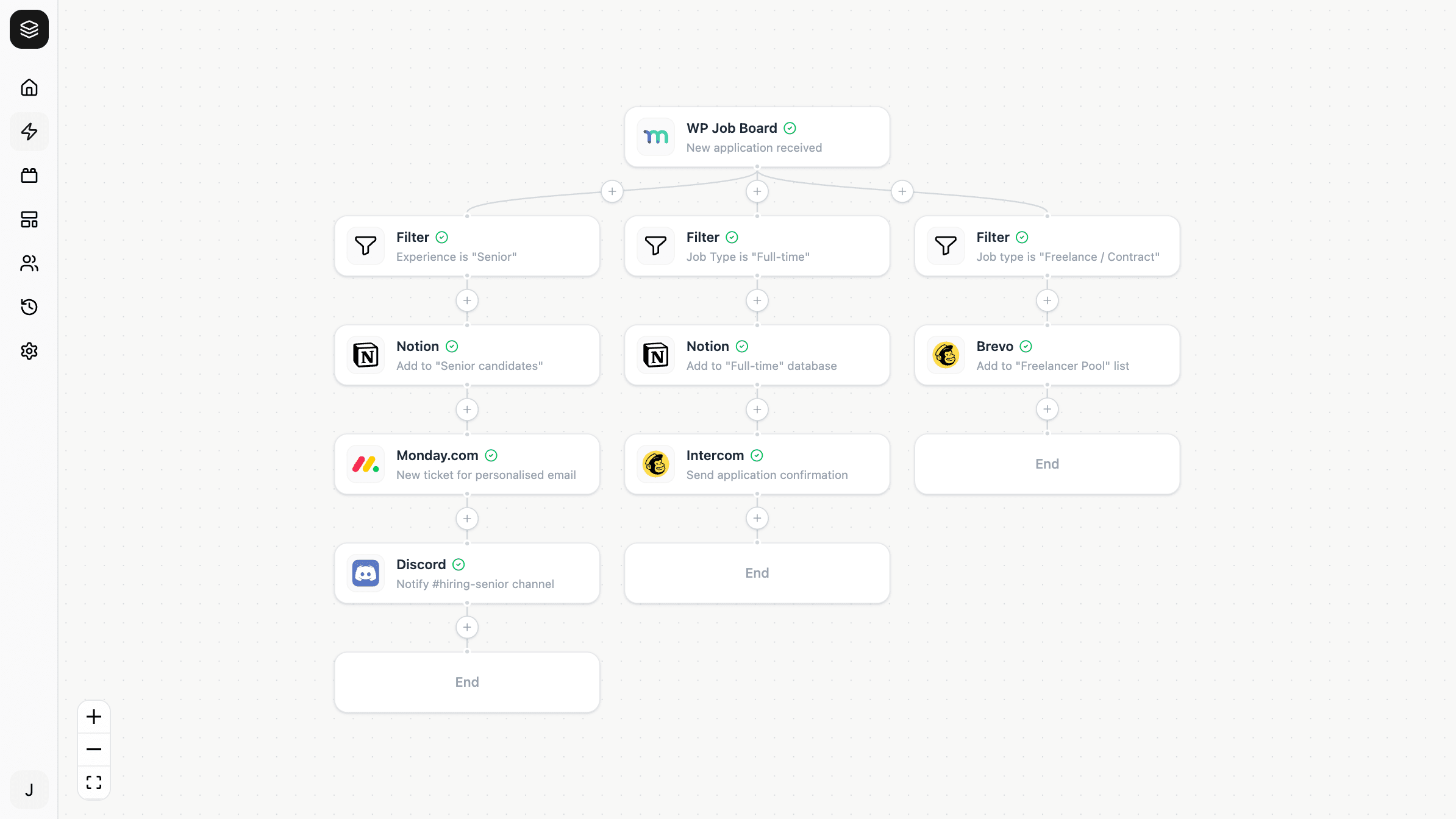
When an automation fails, the run stops at the step that failed and everything after it is skipped. Open that run and you can see exactly how far it got, what data each step received, and what went wrong.
Most failures come down to one of four things: a broken connection, a missing value, the other tool rejecting the request, or the other tool being temporarily unavailable.
Start with the run
Open the automation's run history and find the failed run. Work through it in order:
- Which step stopped it? Everything before it succeeded; everything after never ran.
- What data went into that step? Each step records its input, which is usually where the answer is.
- What did it return? The error message comes from the tool being called, not from Nodest.
That third point matters. Nodest reports what the other service said, so the wording is theirs — which is why messages vary so much between tools.
Was anything already done?
In a multi-step automation this is the first thing to check after the cause.
Steps that already ran are not undone. If step 2 created a record and step 3 failed, that record exists. There's no rollback, because Nodest can't un-send a message or delete a row someone else's system already wrote.
So before re-running anything, look at what completed. Otherwise you can end up with duplicates — two CRM records, two emails to the same customer.
The four common causes
The connection stopped working
Looks like: unauthorised, forbidden, invalid token. Often several automations failing at once.
Cause: credentials rotated, access revoked at the provider, the account lost permission, or the site moved.
Fix: reconnect. Your automations pick it up with no editing. See Reconnecting and revoking access.
A required value was empty
Looks like: the tool complaining that a field is required or invalid.
Cause: a mapped value that wasn't there on this particular run — an optional field the customer left blank, an address that wasn't collected.
Fix: check the step's recorded input to confirm which value arrived empty. Then either put a filter ahead of the step so it only runs when the data exists, or supply a fixed fallback.
This is the failure that only shows up occasionally, because it depends on the record.
The other tool rejected the request
Looks like: validation errors, "not found", or a complaint about a specific field's format.
Cause: a value in the wrong shape, a resource that no longer exists — a deleted list or archived database — or a field the tool has since started requiring.
Fix: compare what the step sent against what the tool expects. Deleted resources are common: the field still holds an identifier, but it now points at nothing.
The other tool was temporarily unavailable
Looks like: timeouts, rate limits, server errors.
Cause: the service was down, slow, or you sent too many requests too quickly.
Fix: usually nothing — the next run works. If it recurs, look at volume: a burst of events can hit a rate limit that steady traffic never would.
When there's no run at all
If nothing happened and there's no failed run, the automation never started. That's a different problem: the trigger didn't fire or didn't reach Nodest.
Check that the automation is active, and for WordPress that the plugin is active and outbound requests aren't blocked. See WordPress troubleshooting.
When the run succeeded but nothing happened
Usually a filter that didn't pass — which is a normal outcome, not a failure. The run evaluated its conditions, found nothing to do, and ended.
Open the run and check which path it took. If it stopped at a filter you expected to pass, look at the value the filter tested against; it's often a near-miss, like a status of processing where you filtered for completed.
Before you re-run
Fix the cause first, then decide whether the missed event needs re-running at all — and check what already completed, so you don't duplicate it.