Customising a template
Adapting the steps, fields, and conditions of a copied template to fit your process.
A copied template is a normal automation. Nothing about it is locked, nothing reports back to the original, and every step can be changed, added or removed like any you built yourself.
The template gives you a working shape. Customising is the process of turning that shape into your actual process.
Start by understanding it
Before changing anything, open each step and read what it does. Templates cover the common path, and the reason they're worth starting from is that the step order usually reflects something sensible — a filter placed early, a customer-facing action placed last.
Understanding why a step is where it is tells you what's safe to move.
Narrowing when it runs
The most common first change. A template usually fires for every event of its type; your process probably wants a subset.
Add a filter early — before any actions, and before any delay — so the automation stops on cases you don't care about before doing work you'd have to undo.
Examples: only completed orders, only submissions from one form, only subscriptions above a certain tier.
Changing what a step does
Open the step and edit its fields. Two kinds of change come up:
Pointing it somewhere else — a different list, database, or channel. Change the field and you're done.
Sending different data — switch a field between a fixed value and a variable from an earlier step. A template might send the customer's first name where you'd rather send their full name and company. See Mapping data between steps.
Adding steps
Add actions wherever they belong in the order. A template that adds a customer to a mailing list might also need to create a CRM record and notify a channel.
Remember steps can use output from any earlier step, not just the trigger — so a step you add can reference the record an existing step created.
Removing steps
Delete what you don't need rather than leaving it configured but inactive. An unused step still shows up in run history and still consumes actions, and later you'll wonder whether it mattered.
Before deleting, check nothing after it maps a value it produced. If a later step references the deleted step's output, that mapping breaks.
Splitting into paths
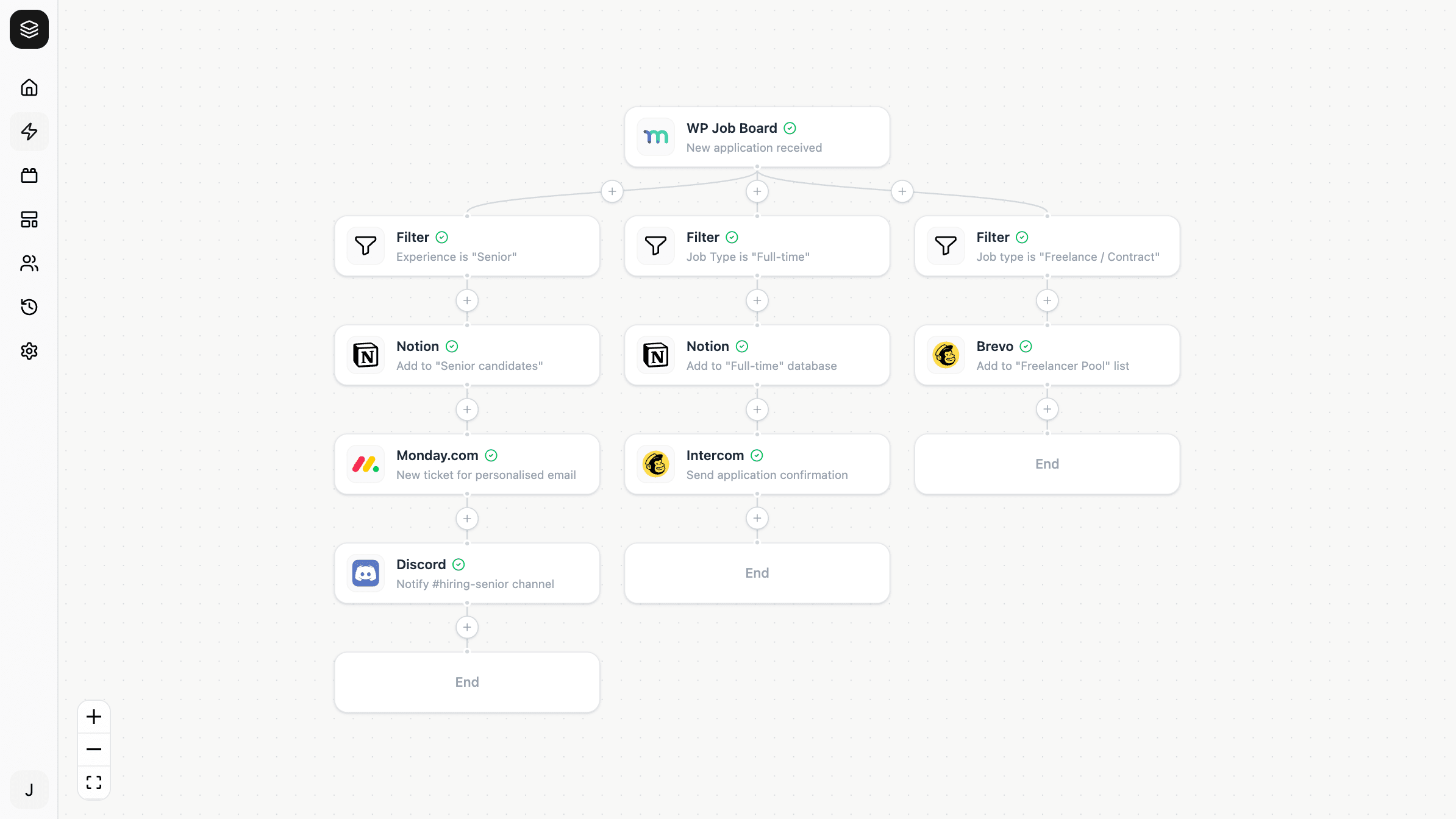
If your process does different things for different data, replace a single path with a branch. Each path gets its own conditions and its own steps — high-value orders one way, everything else another.
Spacing it out
Templates usually act immediately. If yours should wait — a follow-up a few days after purchase — add a delay before the step that should happen late, keeping filters ahead of it.
Renaming steps
Worth doing and easy to skip. Rename steps for what they do in your process: "notify retention team" rather than "Discord action".
This costs nothing now and pays off every time you read a run afterwards, especially in an automation with several similar-looking steps.
Test after changing
Every change is a chance to break a mapping — particularly removing a step, or repointing one at a different resource whose fields differ.
Test the steps you touched, then run the whole automation once for real and read the run history before trusting it.
Diverging from the template
Once you've filtered, added, branched and renamed, your automation may not resemble the template much. That's the expected outcome, not a sign you chose the wrong one — the template's job was to save you the blank canvas, and it's finished once you've copied it.