Using a template
Start from a ready-made automation, connect it to your tools, and make it yours.
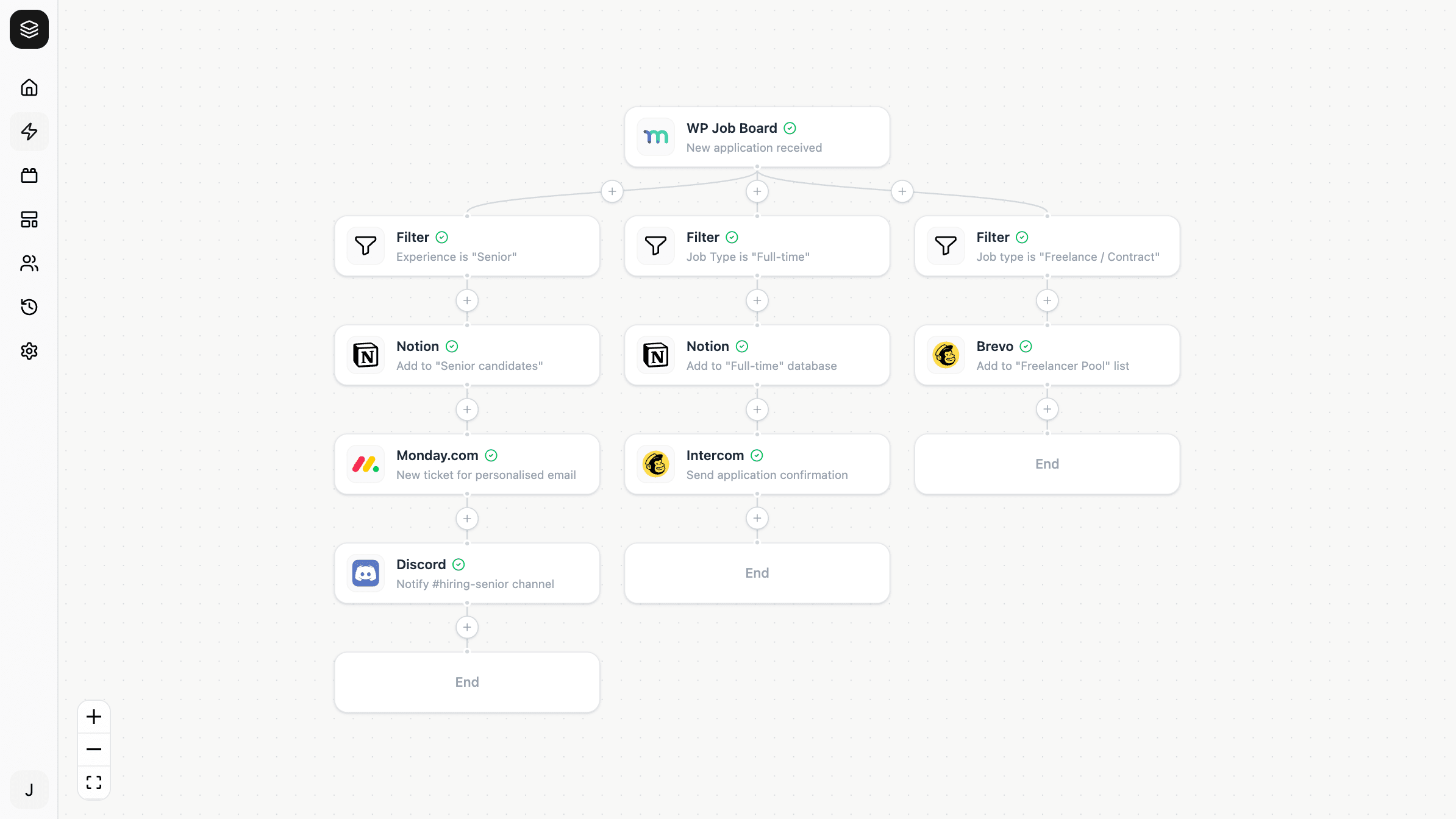
A template is a pre-built automation you copy into your workspace. Instead of assembling steps from scratch, you start with a working shape — the trigger, the actions, and the logic between them already in place — and adjust it to fit.
When to use one
Templates are worth reaching for when the workflow you want is a common one: syncing orders to a mailing list, turning form submissions into tickets, announcing published posts. Someone has already worked out the sensible step order and which fields matter.
They're also a good way to learn the editor. Copying a template and opening it up shows you how filters, mappings and multi-step flows fit together on a real example rather than an empty canvas.
Copying a template
Browse the templates and copy the one you want into a workspace. You get your own independent automation — the steps, their configuration, and the connections between them.
From that point it's yours. Editing it doesn't affect the template, and the template changing later doesn't affect your copy.
What you need to do after copying
A copied template arrives inactive and usually needs three things before it will run.
Connect the tools it uses. The template knows it needs, say, WooCommerce and Brevo, but it has no access to your accounts. Any tool it references that you haven't connected in this workspace needs connecting first.
Choose your specific resources. Fields that point at a particular destination — which mailing list, which database, which channel — can't be filled in by a template, because those exist only in your account. Open each step and pick yours.
Test the trigger. Fetch sample data so the variable mappings resolve against your real fields, and so you can confirm what the automation will actually receive.
Then activate it, cause the event once for real, and check the run history.
Making it yours
Once it works as supplied, treat it as a starting point rather than something to preserve:
- Add a filter so it only runs for the cases you care about
- Add steps — templates cover the common path, not your whole process
- Rename steps to match your vocabulary, which makes run history far easier to read later
- Remove what you don't need rather than leaving steps configured but unused
If a template doesn't quite fit
Copy the closest one and change it. Understanding the shape of a working automation and adapting it is usually faster than starting empty, even when half the steps change.