Reading run history
See every run of an automation, the steps it took, and the data at each step.
Every time an automation runs, Nodest records it: which steps executed, in what order, what data went into each one, and what came back. That record is how you confirm an automation is doing what you think, and how you diagnose it when it isn't.
What a run is
One run is one execution, caused by one event. Ten orders produce ten runs, each with its own data and its own outcome — independent of each other.
What gets recorded
For each step that executed:
- What went in — the values the step actually received, after your mappings resolved
- What came back — the response from the tool that was called
- What happened — succeeded, failed, or still waiting
The input is the part people underuse. It's the difference between "the email step ran" and "the email step ran with an empty address", and it answers most questions without guessing.
Which steps appear?
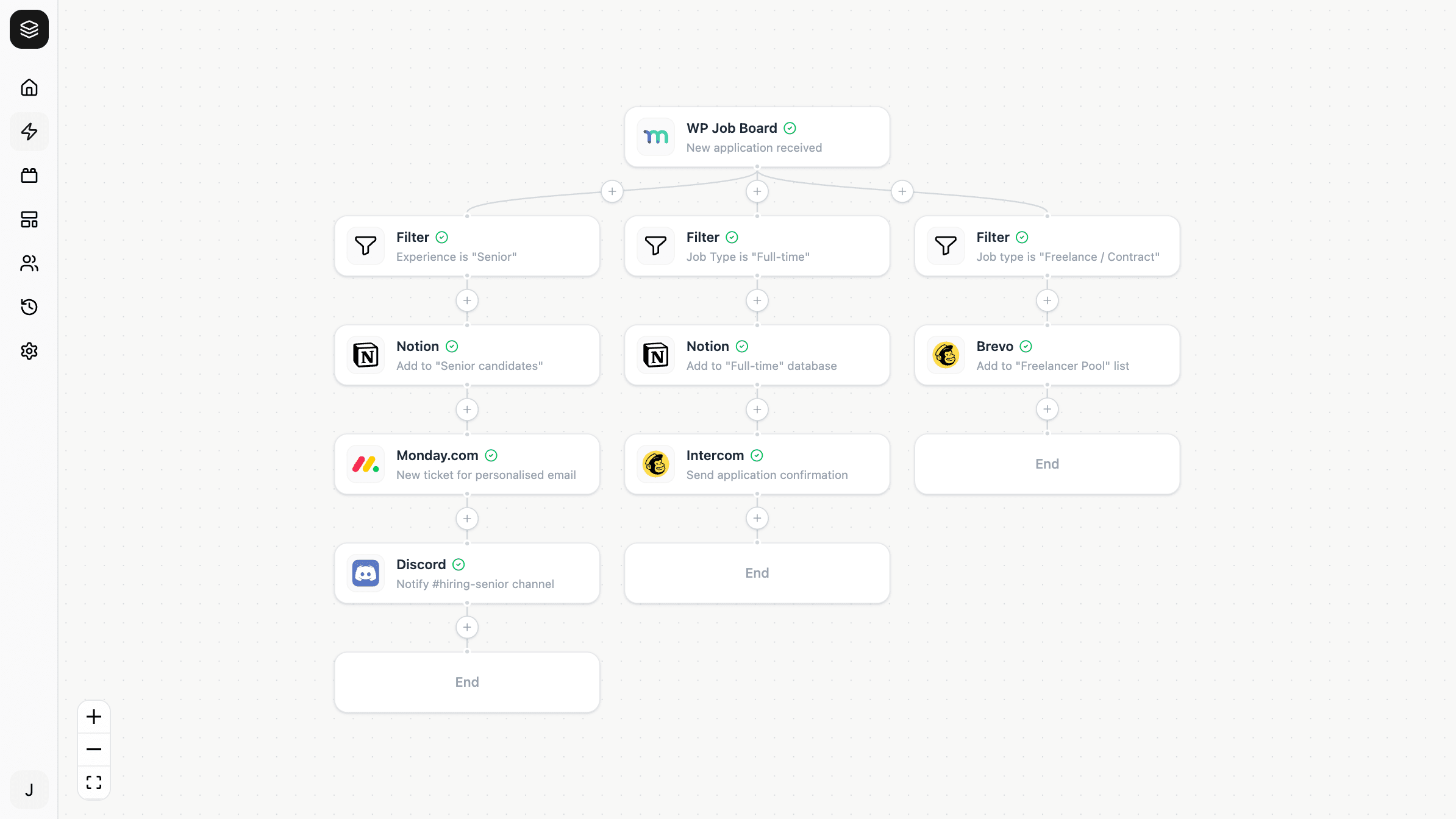
Only the ones that executed. Runs take one path through the automation, so:
- Steps after a filter that didn't pass don't appear — the run ended there
- On a branch, only the paths whose conditions matched appear
- Steps after a failure don't appear — the run stopped
The absence of a step is information. If an action you expected is missing, work backwards to the last step that did run; that's where the path ended.
How runs end
Succeeded — every step on the path completed.
Stopped at a filter — conditions weren't met, so the run ended early. This is a normal outcome, not a failure. In a well-filtered automation most runs end this way.
Sleeping — the run reached a delay and is waiting. It resumes automatically, which may be days later. A sleeping run is still in progress.
Failed — a step returned an error, and nothing after it ran. See Why an automation failed.
Runs are a historical record
A run records what happened then. Editing the automation changes what future runs do — it never rewrites past ones.
This is what makes run history trustworthy for diagnosis: a run from last week shows the configuration as it was, not as it is now. It also means fixing a problem doesn't retroactively repair the runs that hit it.
What it's useful for beyond debugging
Confirming a new automation. After activating something, trigger it once and read the run rather than checking the destination tool. You see the whole path, including steps that quietly did nothing.
Understanding "it didn't fire". If there's no run at all, the trigger never reached Nodest — a different problem from a run that failed. That distinction is the fastest first check.
Spotting near-misses. A run that stopped at a filter you expected to pass usually shows the culprit in the filter's recorded input: a status of processing where you filtered for completed.
Sub-automations
A sub-automation call produces its own run, separate from the one that called it.
When a run reaches a call step, that step goes to sleep and a new run starts for the target automation. The two are linked: the child run records which call it came from, and when it finishes, the parent wakes and continues at the next step.
So a workflow spanning a sub-automation leaves two runs behind, not one. That's worth knowing when you're diagnosing something — if the calling run shows a sleeping call step and nothing after it, the answer is in the child run, not the parent.
If the child run fails, the parent's call step fails too, and the steps after it don't execute.
The sub-automation gets its own run, linked back to the call step that started it. The calling run shows the call step sleeping while the child executes, then continuing once it returns.
When a sub-automation runs in another workspace, its run belongs to that workspace — which is where you look if you need to see what happened inside it.
How long is history kept?
Run history is retained for a window that depends on your plan, then removed. Your automations are never affected — only the record of past executions.
If you need a longer-term record of something an automation did, write it somewhere durable as part of the workflow rather than relying on run history.