Build your first automation in under 5 minutes. Sign up for free.

Connect WooCommerce with WordPress

Build automations that connect WooCommerce with WordPress. When something happens in WooCommerce, Nodest passes the data along and runs the actions you set up in WordPress or the other way around — no coding required.

How it works

Connect WooCommerce with WordPress in three steps

Create automations that move data between WooCommerce and WordPress. Nodest handles the work in between, so you can focus on what matters.

Connect WooCommerce and WordPress

Link your WooCommerce and WordPress accounts to Nodest in a few clicks, so both tools are ready to use in automations.

Pick a trigger

Choose the event that starts your automation, such as a new order, form submission, or updated record in WooCommerce or WordPress.

Chain actions and go live

Add one or more actions, and combine them with filters, branches, and delays to create a workflow that fits your needs.
Triggers and actions

Available triggers and actions for WooCommerce and WordPress

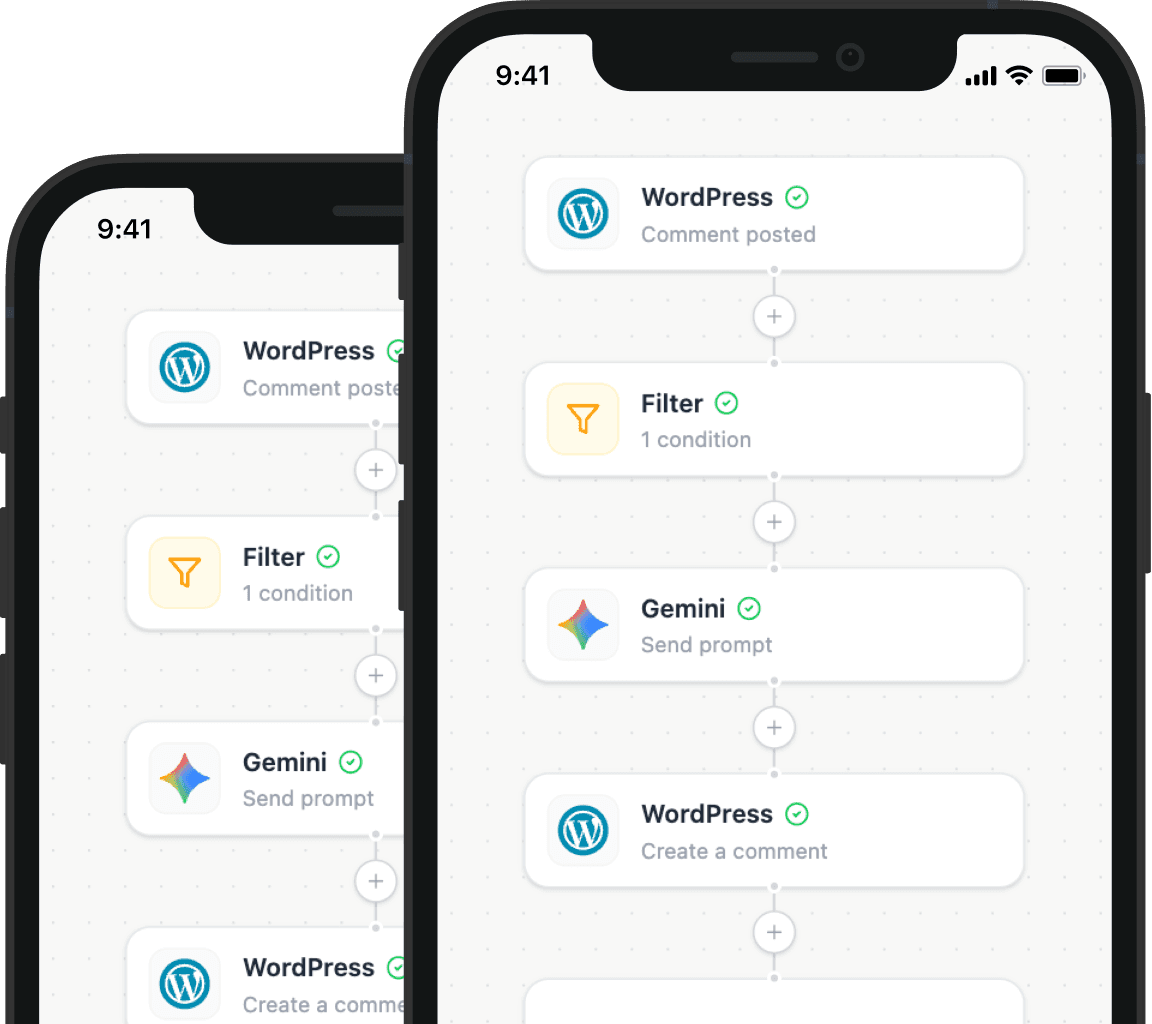
Combine the triggers and actions of WooCommerce and WordPress to build your automation. Triggers start the automation, and actions are the steps that follow.

Order placedTrigger

Order placed

Fires when a customer places a new order.

Payment completeTrigger

Payment complete

Fires when payment is completed for an order.

Customer createdTrigger

Customer created

Fires when a new customer account is created.

Order status changedTrigger

Order status changed

Fires when an order changes status.

Create a couponAction

Create a coupon

Create a discount coupon in WooCommerce.

Create a customerAction

Create a customer

Create a customer account in WooCommerce.

Create an order noteAction

Create an order note

Add an internal or customer-facing order note.

Create a productAction

Create a product

Create a product in your WooCommerce store.

Create an orderAction

Create an order

Create an order in your WooCommerce store.

Update an orderAction

Update an order

Update an existing order in WooCommerce.

Refund an orderAction

Refund an order

Refund a WooCommerce order, in full or in part.

Update a productAction

Update a product

Update an existing product in WooCommerce.

Update a customerAction

Update a customer

Update an existing customer in WooCommerce.

Create a product categoryAction

Create a product category

Create a product category in WooCommerce.

Create a product tagAction

Create a product tag

Create a product tag in WooCommerce.

Update product stockAction

Update product stock

Update the stock quantity of a product.

Page publishedTrigger

Page published

Fires when a page is published.

Post publishedTrigger

Post published

Fires when a post is published.

User registeredTrigger

User registered

Fires when a new user registers on the site.

Comment postedTrigger

Comment posted

Fires when a comment is posted on a post or page.

Create a categoryAction

Create a category

Create a category in WordPress.

Create a postAction

Create a post

Create a draft or published post in WordPress.

Update a postAction

Update a post

Update an existing WordPress post.

Create a pageAction

Create a page

Create a static page in WordPress.

Create a tagAction

Create a tag

Create a tag in WordPress.

Reply to a commentAction

Reply to a comment

Reply to an existing comment on a post or page.

Update a userAction

Update a user

Update an existing WordPress user.

Create a userAction

Create a user

Create a user account in WordPress.

Update a comment statusAction

Update a comment status

Approve, hold, mark as spam, or trash a comment.

Delete a postAction

Delete a post

Move a post to trash or permanently delete it.

Create a commentAction

Create a comment

Add a comment to a WordPress post or page.

Update a pageAction

Update a page

Update an existing WordPress page.

Update a categoryAction

Update a category

Update an existing WordPress category.

Update a tagAction

Update a tag

Update an existing WordPress tag.

Delete a userAction

Delete a user

Delete a user and reassign their content.

FAQ

Frequently asked questions about WooCommerce and WordPress

Find answers to common questions about connecting WooCommerce with WordPress using Nodest.

Is there a free plan available?

Yes. The free plan includes unlimited automations and 100 actions per month, with no credit card required — enough to run your first WooCommerce and WordPress workflows before deciding to upgrade.

How do I connect WooCommerce to WordPress?

Add WooCommerce and WordPress as connections in your Nodest workspace and authorize access. Then build an automation where an event in one tool triggers actions in the other — no configuration files to manage.

Can data flow in both directions between WooCommerce and WordPress?

Yes. Each automation moves data in the direction you choose, and you can create one automation for each direction to keep WooCommerce and WordPress in sync.

What kinds of workflows can I automate with WooCommerce and WordPress?

Any workflow that moves data between WooCommerce, WordPress, and the rest of your stack. Automations can start from events in either tool, and a single trigger can feed several actions at once.

Do I need coding skills to use Nodest?

No. Automations are built in a visual editor: pick a trigger, add actions, and map fields between them. If you can use WordPress, you can connect WooCommerce with WordPress using Nodest.

Where is my automation data processed?

In the EU. Nodest is operated from Germany and hosts customer and automation data with Hetzner in Germany, processed under the GDPR with a data processing agreement available to every customer. That makes Nodest a fit for teams that cannot send site data to US-hosted automation tools.

Automation tips and tricks for WordPress professionals

Learn how to take control of your time with automation tips and productivity insights - weekly to your inbox.

Illustration showing how Nodest connects WordPress to the tools you already use every day