Build your first automation in under 5 minutes. Sign up for free.

Connect Resend with CleverReach

Build automations that connect Resend with CleverReach. When something happens in Resend, Nodest passes the data along and runs the actions you set up in CleverReach or the other way around — no coding required.

Automations

Popular Resend and CleverReach workflows

Pick a ready-made workflow that connects Resend with CleverReach, customise it to fit your needs, and go live in minutes.

ResendCleverReach

Delete receivers in CleverReach for deleted contacts in Resend

When “Contact deleted” fires in Resend, Nodest will delete a receiver in CleverReach.

ResendCleverReach

Add tags to receivers in CleverReach for clicked emails in Resend

When “Email clicked” fires in Resend, Nodest will create or update a receiver in CleverReach and add a tag to a receiver in CleverReach.

ResendCleverReach

Create or update receivers in CleverReach for new contacts in Resend

When “Contact created” fires in Resend, Nodest will create or update a receiver in CleverReach.

ResendCleverReach

Add emails to the blocklist in CleverReach for emails marked as spam in Resend

When “Email marked as spam” fires in Resend, Nodest will add an email to the blocklist in CleverReach.

ResendCleverReach

Add emails to the blocklist in CleverReach for bounced emails in Resend

When “Email bounced” fires in Resend, Nodest will add an email to the blocklist in CleverReach.

ResendCleverReach

Deactivate receivers in CleverReach for new suppressions in Resend

When “Suppression added” fires in Resend, Nodest will deactivate a receiver in CleverReach.

Triggers and actions

Available triggers and actions for Resend and CleverReach

Combine the triggers and actions of Resend and CleverReach to build your automation. Triggers start the automation, and actions are the steps that follow.

Suppression addedTrigger

Suppression added

Fires when an address is added to your suppression list

Contact deletedTrigger

Contact deleted

Fires when a contact is removed from your Resend audience

Contact updatedTrigger

Contact updated

Fires when a contact's details or subscription status change

Contact createdTrigger

Contact created

Fires when a contact is added to your Resend audience

Email receivedTrigger

Email received

Fires when Resend receives an inbound email

Email failedTrigger

Email failed

Fires when an email fails to send

Email marked as spamTrigger

Email marked as spam

Fires when a recipient marks a delivered email as spam

Email clickedTrigger

Email clicked

Fires when a recipient clicks a link in an email

Email openedTrigger

Email opened

Fires when a recipient opens an email

Email bouncedTrigger

Email bounced

Fires when a recipient's mail server permanently rejects an email

Email deliveredTrigger

Email delivered

Fires when Resend delivers an email to the recipient's mail server

Find contactsAction

Find contacts

List contacts in your Resend account.

Find segmentsAction

Find segments

List segments in your Resend account.

Retrieve a segmentAction

Retrieve a segment

Get one Resend segment by id.

Find contacts in a segmentAction

Find contacts in a segment

List the contacts in a Resend segment.

Find topicsAction

Find topics

List subscription topics in Resend.

Retrieve a topicAction

Retrieve a topic

Get one Resend topic by id.

Find broadcastsAction

Find broadcasts

List broadcasts in your Resend account.

Find sent emailsAction

Find sent emails

List emails sent from your Resend account.

Find templatesAction

Find templates

List email templates in Resend.

Retrieve a templateAction

Retrieve a template

Get one Resend template and its variables.

Find domainsAction

Find domains

List sending domains in Resend.

Retrieve a domainAction

Retrieve a domain

Get one Resend sending domain by id.

Send an emailAction

Send an email

Send an email through Resend.

Update a scheduled emailAction

Update a scheduled email

Reschedule a scheduled Resend email.

Find suppressionsAction

Find suppressions

List suppressed addresses in Resend.

Find contact propertiesAction

Find contact properties

List custom contact properties in Resend.

Delete a contactAction

Delete a contact

Remove a contact from Resend.

Add a contact to a segmentAction

Add a contact to a segment

Add a Resend contact to a segment.

Remove a contact from a segmentAction

Remove a contact from a segment

Remove a Resend contact from a segment.

Update topic subscriptions for a contactAction

Update topic subscriptions for a contact

Set a contact's Resend topic subscription.

Create a segmentAction

Create a segment

Create a segment in Resend.

Update a segmentAction

Update a segment

Rename a segment in Resend.

Delete a segmentAction

Delete a segment

Remove a segment from Resend.

Retrieve a contactAction

Retrieve a contact

Get one Resend contact by id or email.

Retrieve a broadcastAction

Retrieve a broadcast

Get one Resend broadcast by id.

Cancel a scheduled emailAction

Cancel a scheduled email

Cancel a scheduled Resend email.

Create a contactAction

Create a contact

Add a contact to your Resend audience.

Create a broadcastAction

Create a broadcast

Create a broadcast in Resend.

Update a contactAction

Update a contact

Change a contact's details in Resend.

Update a broadcastAction

Update a broadcast

Change a draft broadcast in Resend.

Send a broadcastAction

Send a broadcast

Send a Resend broadcast to its segment.

Cancel a broadcastAction

Cancel a broadcast

Stop a queued or scheduled Resend broadcast.

Delete a broadcastAction

Delete a broadcast

Remove a broadcast from Resend.

Add a suppressionAction

Add a suppression

Block an address from Resend sending.

Remove a suppressionAction

Remove a suppression

Unblock an address in Resend.

Send an eventAction

Send an event

Trigger a Resend automation with an event.

Send an email from a templateAction

Send an email from a template

Send a Resend email from a template.

Retrieve a sent emailAction

Retrieve a sent email

Get one sent Resend email by id.

Find groupsAction

Find groups

List groups in your CleverReach account.

Retrieve a groupAction

Retrieve a group

Retrieve a group from your CleverReach account by ID.

Retrieve a receiverAction

Retrieve a receiver

Retrieve a receiver from your CleverReach account by ID or email.

Find receiversAction

Find receivers

List receivers in a CleverReach group.

Find global attributesAction

Find global attributes

List global attributes defined for receivers.

Find group attributesAction

Find group attributes

List attributes defined for a CleverReach group.

Create or update a receiverAction

Create or update a receiver

Create a receiver in a CleverReach group, or update the existing receiver with the same email.

Update a receiverAction

Update a receiver

Update an existing receiver in a CleverReach group. The email can't be changed.

Delete a receiverAction

Delete a receiver

Permanently delete a receiver from a CleverReach group.

Activate a receiverAction

Activate a receiver

Activate a receiver in a CleverReach group.

Deactivate a receiverAction

Deactivate a receiver

Deactivate a receiver in a CleverReach group.

Add a tag to a receiverAction

Add a tag to a receiver

Add a tag to a receiver in CleverReach.

Remove a tag from a receiverAction

Remove a tag from a receiver

Remove a tag from a receiver in CleverReach.

Add an order to a receiverAction

Add an order to a receiver

Record an order for a receiver in CleverReach.

Create a groupAction

Create a group

Create a group in CleverReach.

Change a receiver's emailAction

Change a receiver's email

Change the email address of a receiver in CleverReach.

Update a groupAction

Update a group

Update an existing group in CleverReach.

Delete a groupAction

Delete a group

Permanently delete a group from CleverReach.

Create an attributeAction

Create an attribute

Create a global attribute, or an attribute in a CleverReach group.

Retrieve a global attributeAction

Retrieve a global attribute

Retrieve a global attribute from your CleverReach account by ID.

Retrieve a group attributeAction

Retrieve a group attribute

Retrieve a group attribute from your CleverReach account by ID.

Delete a global attributeAction

Delete a global attribute

Permanently delete a global attribute from CleverReach.

Delete a group attributeAction

Delete a group attribute

Permanently delete an attribute from a CleverReach group.

Update a global attributeAction

Update a global attribute

Update a global attribute in CleverReach. The name can't be changed.

Update a group attributeAction

Update a group attribute

Update an attribute in a CleverReach group. The name can't be changed.

Find ordersAction

Find orders

List orders of a receiver in a CleverReach group.

Update an orderAction

Update an order

Update an order of a receiver in CleverReach.

Delete an orderAction

Delete an order

Permanently delete an order of a receiver in CleverReach.

Add an email to the blocklistAction

Add an email to the blocklist

Add an email address to your CleverReach blocklist.

Remove an email from the blocklistAction

Remove an email from the blocklist

Remove an email address from your CleverReach blocklist.

Retrieve a blocklist entryAction

Retrieve a blocklist entry

Retrieve a blocklist entry from your CleverReach account by email.

Find reportsAction

Find reports

List reports in your CleverReach account.

Find mailingsAction

Find mailings

List mailings in your CleverReach account.

Retrieve a mailingAction

Retrieve a mailing

Retrieve a mailing from your CleverReach account by ID.

Retrieve a reportAction

Retrieve a report

Retrieve a report from your CleverReach account by ID.

How it works

Connect Resend with CleverReach in three steps

Create automations that move data between Resend and CleverReach. Nodest handles the work in between, so you can focus on what matters.

Connect Resend and CleverReach

Link your Resend and CleverReach accounts to Nodest in a few clicks, so both tools are ready to use in automations.

Pick a trigger

Choose the event that starts your automation, such as a new order, form submission, or updated record in Resend or CleverReach.

Chain actions and go live

Add one or more actions, and combine them with filters, branches, and delays to create a workflow that fits your needs.
Automation tips and tricks for WordPress professionals

Learn how to take control of your time with automation tips and productivity insights - weekly to your inbox.

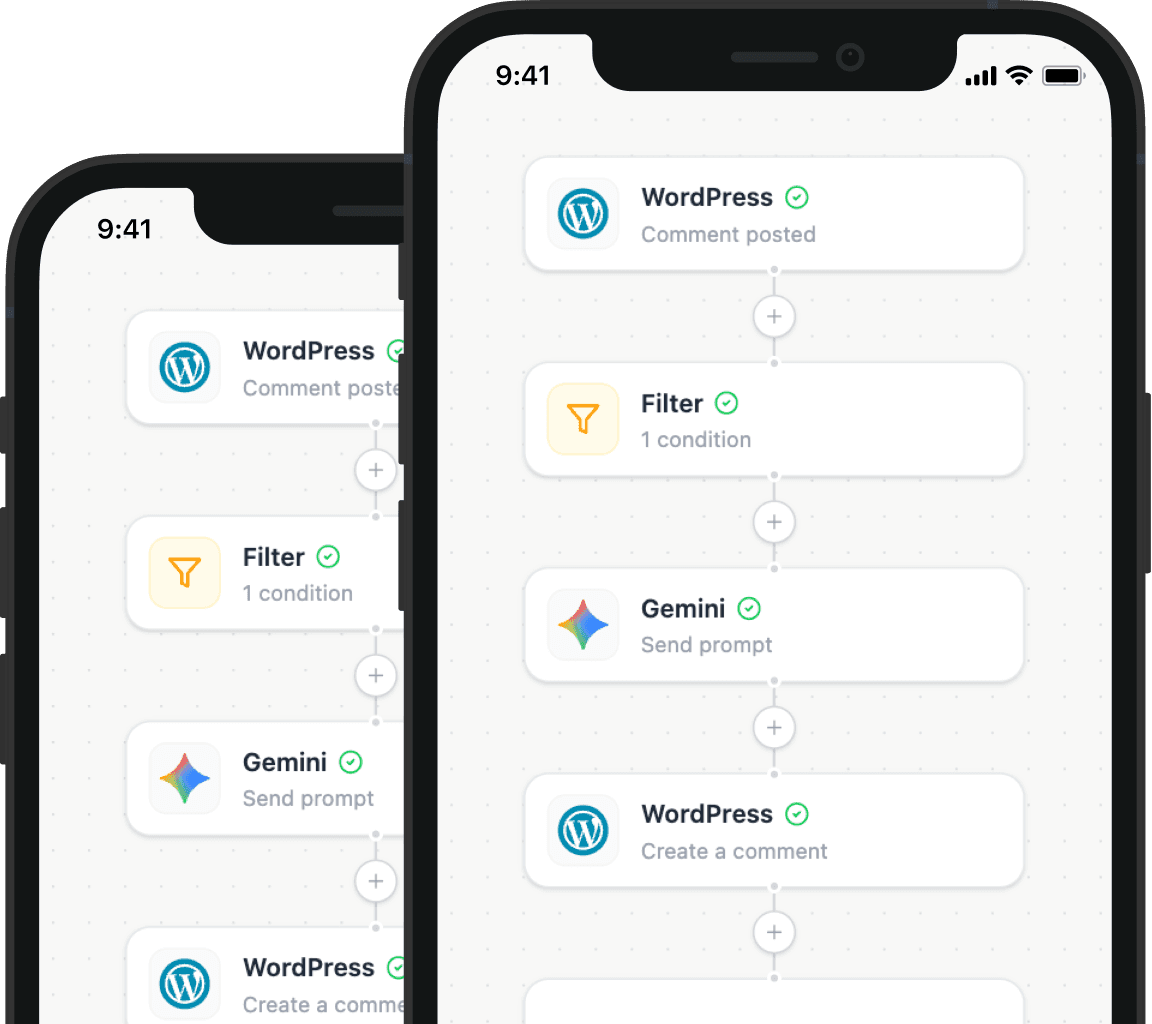
Illustration showing how Nodest connects WordPress to the tools you already use every day