Build your first automation in under 5 minutes. Sign up for free.

Connect Calendly with Gemini

Build automations that connect Calendly with Gemini. When something happens in Calendly, Nodest passes the data along and runs the actions you set up in Gemini or the other way around — no coding required.

Automations

Popular Calendly and Gemini workflows

Pick a ready-made workflow that connects Calendly with Gemini, customise it to fit your needs, and go live in minutes.

CalendlyGeminiResend

Send emails in Resend with Gemini for no-shows in Calendly

When “Invitee marked as no-show” fires in Calendly, Nodest will send a prompt in Gemini and send an email in Resend.

CalendlyGeminiResend

Send emails in Resend with Gemini for new meeting recaps in Calendly

When “Meeting recap created” fires in Calendly, Nodest will send a prompt in Gemini and send an email in Resend.

CalendlyGeminiNotion

Create pages in Notion with Gemini for new meeting recaps in Calendly

When “Meeting recap created” fires in Calendly, Nodest will send a prompt in Gemini and create a page in a database in Notion.

CalendlyGeminiMonday.com

Create items in Monday.com with Gemini for new meeting recaps in Calendly

When “Meeting recap created” fires in Calendly, Nodest will send a prompt in Gemini and create an item in Monday.com.

CalendlyGeminiLinear

Create issues in Linear with Gemini for new meeting recaps in Calendly

When “Meeting recap created” fires in Calendly, Nodest will send a prompt in Gemini and create an issue in Linear.

CalendlyGeminiClickUp

Create tasks in ClickUp with Gemini for new meeting recaps in Calendly

When “Meeting recap created” fires in Calendly, Nodest will send a prompt in Gemini and create a task in ClickUp.

CalendlyGeminiBrevo

Send transactional emails in Brevo with Gemini for no-shows in Calendly

When “Invitee marked as no-show” fires in Calendly, Nodest will send a prompt in Gemini and send a transactional email in Brevo.

CalendlyGeminiBrevo

Send transactional emails in Brevo with Gemini for new meeting recaps in Calendly

When “Meeting recap created” fires in Calendly, Nodest will send a prompt in Gemini and send a transactional email in Brevo.

CalendlyGeminiAsana

Create tasks in Asana with Gemini for new meeting recaps in Calendly

When “Meeting recap created” fires in Calendly, Nodest will send a prompt in Gemini and create a task in Asana.

CalendlyActiveCampaignGemini

Add notes to contacts in ActiveCampaign with Gemini for new meeting recaps in Calendly

When “Meeting recap created” fires in Calendly, Nodest will add a note to a contact in ActiveCampaign and send a prompt in Gemini and create or update a contact in ActiveCampaign.

Triggers and actions

Available triggers and actions for Calendly and Gemini

Combine the triggers and actions of Calendly and Gemini to build your automation. Triggers start the automation, and actions are the steps that follow.

Meeting recap deletedTrigger

Meeting recap deleted

Fires when a meeting recap is deleted.

Meeting recap updatedTrigger

Meeting recap updated

Fires when a meeting recap's highlights change.

Meeting recap createdTrigger

Meeting recap created

Fires when Notetaker creates a meeting recap.

Contact deletedTrigger

Contact deleted

Fires when a contact is deleted in Calendly.

Contact updatedTrigger

Contact updated

Fires when a contact changes in Calendly.

Invitee no-show removedTrigger

Invitee no-show removed

Fires when a no-show mark is removed.

Invitee createdTrigger

Invitee created

Fires when someone books a Calendly meeting.

Contact createdTrigger

Contact created

Fires when a contact is added in Calendly.

Event type deletedTrigger

Event type deleted

Fires when a Calendly event type is deleted.

Event type updatedTrigger

Event type updated

Fires when a Calendly event type is updated.

Event type createdTrigger

Event type created

Fires when a Calendly event type is created.

Invitee marked as no-showTrigger

Invitee marked as no-show

Fires when an invitee is marked as a no-show.

Routing form submittedTrigger

Routing form submitted

Fires when someone submits a Calendly routing form.

Invitee canceledTrigger

Invitee canceled

Fires when a Calendly booking is canceled.

Find routing formsAction

Find routing forms

List routing forms in your Calendly organization.

Retrieve a routing formAction

Retrieve a routing form

Get a routing form from Calendly.

Cancel an eventAction

Cancel an event

Cancel a scheduled Calendly event.

Find organization membersAction

Find organization members

List members of your Calendly organization.

Retrieve a userAction

Retrieve a user

Get a user in your Calendly organization.

Find groupsAction

Find groups

List groups in your Calendly organization.

Retrieve an event typeAction

Retrieve an event type

Get an event type from Calendly.

Retrieve a scheduled eventAction

Retrieve a scheduled event

Get a scheduled event from Calendly.

Find inviteesAction

Find invitees

List invitees of a Calendly event.

Find available timesAction

Find available times

List open booking times for an event type.

Find availability schedulesAction

Find availability schedules

List availability schedules for a user.

Find meeting locationsAction

Find meeting locations

List meeting locations for a Calendly user.

Find routing form submissionsAction

Find routing form submissions

List submissions of a Calendly routing form.

Retrieve a routing form submissionAction

Retrieve a routing form submission

Get a routing form submission from Calendly.

Find organization invitationsAction

Find organization invitations

List invitations to your Calendly organization.

Find contactsAction

Find contacts

List contacts in your Calendly account.

Retrieve a contactAction

Retrieve a contact

Get a contact from Calendly.

Find meeting recapsAction

Find meeting recaps

List meeting recaps from Calendly Notetaker.

Retrieve a meeting recapAction

Retrieve a meeting recap

Get a meeting recap with summary and action items.

Retrieve a transcriptAction

Retrieve a transcript

Get the transcript of a Calendly meeting.

Mark an invitee as a no-showAction

Mark an invitee as a no-show

Mark a Calendly invitee as a no-show.

Remove a no-show markAction

Remove a no-show mark

Remove the no-show mark from an invitee.

Create a single-use scheduling linkAction

Create a single-use scheduling link

Create a one-time booking link for an event type.

Create a customized scheduling linkAction

Create a customized scheduling link

Create a customized one-time booking link.

Create an event typeAction

Create an event type

Create a one-on-one Calendly event type.

Update an event typeAction

Update an event type

Update a Calendly event type.

Create a one-off meetingAction

Create a one-off meeting

Create a one-off meeting with its own booking link.

Find contact custom fieldsAction

Find contact custom fields

List custom fields for Calendly contacts.

Delete a contactAction

Delete a contact

Delete a contact from Calendly.

Invite a user to the organizationAction

Invite a user to the organization

Invite someone to your Calendly organization.

Revoke an invitationAction

Revoke an invitation

Revoke an invitation to your organization.

Remove a user from the organizationAction

Remove a user from the organization

Remove a member from your Calendly organization.

Update a meeting recapAction

Update a meeting recap

Edit the summary or action items of a recap.

Delete a meeting recapAction

Delete a meeting recap

Delete a Calendly meeting recap.

Find event typesAction

Find event types

List event types in your Calendly account.

Retrieve an inviteeAction

Retrieve an invitee

Get an invitee of a Calendly event.

Find scheduled eventsAction

Find scheduled events

List scheduled events in your Calendly account.

Retrieve an availability scheduleAction

Retrieve an availability schedule

Get an availability schedule from Calendly.

Retrieve a no-showAction

Retrieve a no-show

Get the no-show mark of a Calendly invitee.

Find busy timesAction

Find busy times

List busy times for a Calendly user.

Book a meetingAction

Book a meeting

Book a Calendly meeting for an invitee.

Retrieve an organization memberAction

Retrieve an organization member

Get a member of your Calendly organization.

Retrieve an invitationAction

Retrieve an invitation

Get an invitation to your Calendly organization.

Retrieve a groupAction

Retrieve a group

Get a group in your Calendly organization.

Retrieve a contact custom fieldAction

Retrieve a contact custom field

Get a custom field for Calendly contacts.

Retrieve your organizationAction

Retrieve your organization

Get details of your Calendly organization.

Find event type availabilityAction

Find event type availability

List availability rules of an event type.

Find group membersAction

Find group members

List members of a Calendly group.

Retrieve a group memberAction

Retrieve a group member

Get a member of a Calendly group.

Create a contactAction

Create a contact

Add a contact to Calendly.

Update a contactAction

Update a contact

Update a contact in Calendly.

Find event type hostsAction

Find event type hosts

List the hosts of a Calendly event type.

Find modelsAction

Find models

Models available in your Gemini account.

Send a promptAction

Send a prompt

Send a prompt to a Gemini model.

How it works

Connect Calendly with Gemini in three steps

Create automations that move data between Calendly and Gemini. Nodest handles the work in between, so you can focus on what matters.

Connect Calendly and Gemini

Link your Calendly and Gemini accounts to Nodest in a few clicks, so both tools are ready to use in automations.

Pick a trigger

Choose the event that starts your automation, such as a new order, form submission, or updated record in Calendly or Gemini.

Chain actions and go live

Add one or more actions, and combine them with filters, branches, and delays to create a workflow that fits your needs.
Frequently asked questions about Calendly and Gemini

Find answers to common questions about connecting Calendly with Gemini using Nodest.

How do I connect Gemini to Nodest?

Create a key in Google AI Studio: open the API keys page, choose Create API key, and attach it to a Google Cloud project when asked. Then open Integrations in Nodest, click Connect Gemini, and paste the key.

How do I control the tone or format of the reply?

Automation tips and tricks for WordPress professionals

Learn how to take control of your time with automation tips and productivity insights - weekly to your inbox.

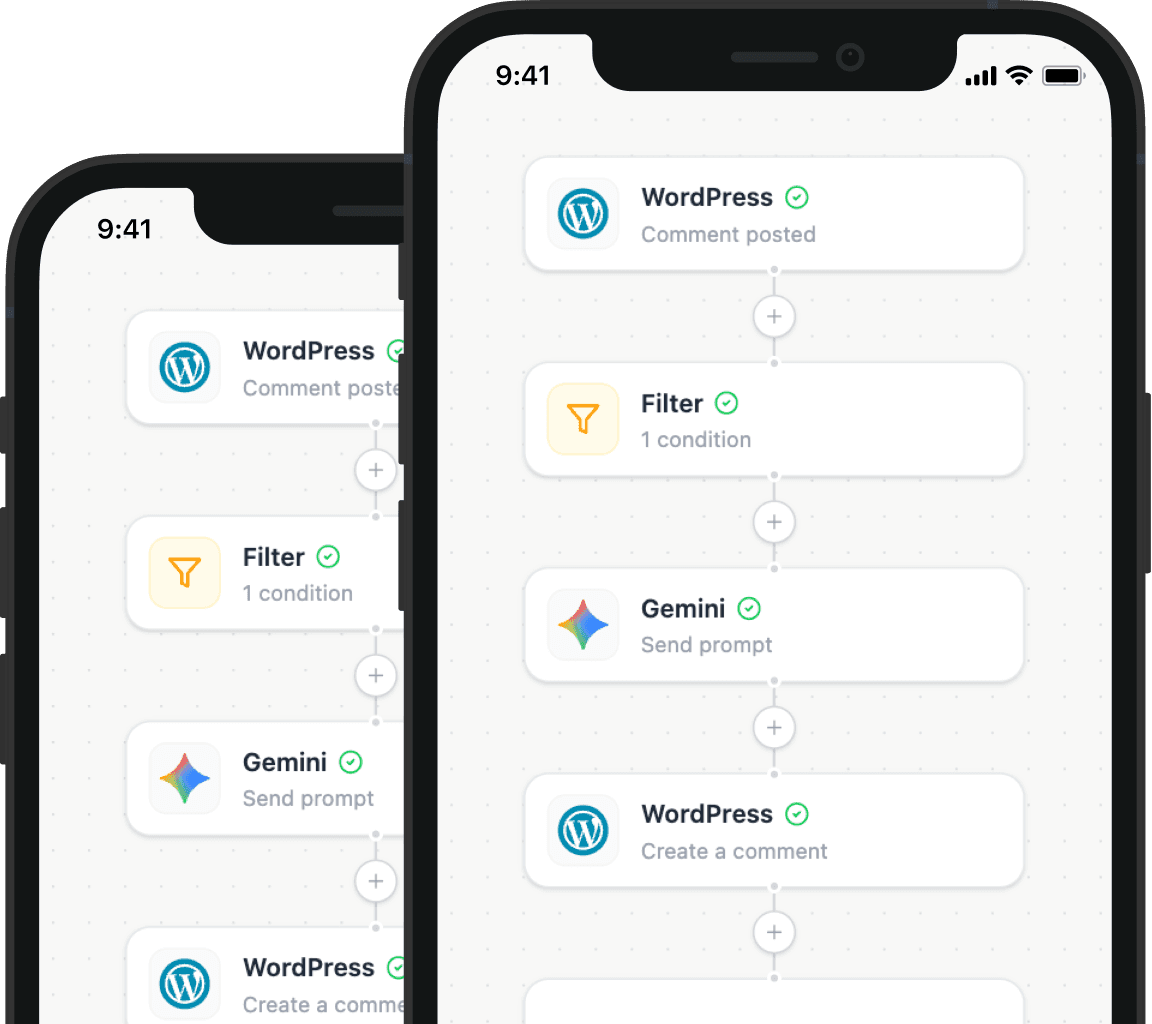
Illustration showing how Nodest connects WordPress to the tools you already use every day