How to Sync WooCommerce Customers to Google Contacts
Automatically add every WooCommerce customer to Google Contacts. Use Nodest's ready-made template to set up the sync in under 5 minutes.
Janine Große-Beck · October 2, 2026
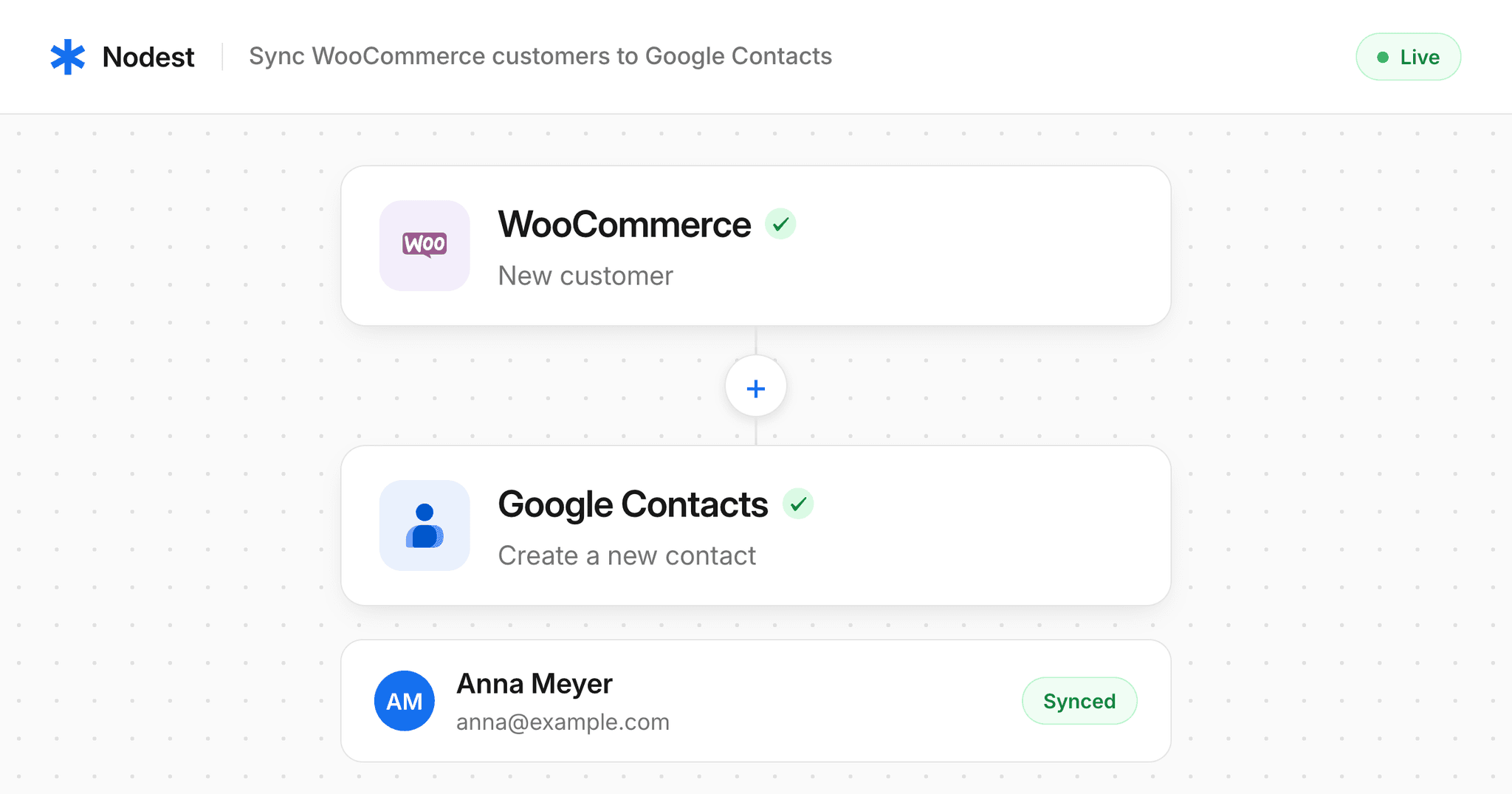
The easiest way to sync WooCommerce to Google Contacts is to automate it: every time a customer places an order, their name, email and phone number are added to your Google Contacts. With Nodest and a ready-made template, you can set this up in under 5 minutes, with no code.
Every new WooCommerce order kicks off the same routine: the order is saved, a confirmation goes out, an invoice is created. But your customer's contact details usually stay locked inside your store, even though you need them on your phone, in Gmail, or in Google Workspace when you follow up later. Copying them over by hand is slow, easy to forget, and a reliable source of typos.
Why sync WooCommerce customers to Google Contacts?
Once your customers are in Google Contacts, their details show up everywhere you already work. That makes it faster to help them, follow up, and spot your regulars.
- Recognize customers when they call. Your phone shows the customer's name instead of an unknown number, so you can greet them personally and pull up their order right away.
- Reply faster in Gmail. Customer emails autocomplete as you type, and their details sit right next to the conversation.
- Share contacts with your team. On Google Workspace, your support or sales team can work from the same up-to-date customer list.
- Keep a backup outside your store. Your customer list lives in a second place you control, separate from your WooCommerce database.
- Plan personal follow-ups. Use Google Contacts labels to group buyers, then reach out after a big order, a delivery issue, or a product launch.
Start with the WooCommerce Customers to Google Contacts template
Syncing order contacts is one of the most common store workflows, so you don't have to build it from scratch. The WooCommerce to Google Contacts template in the Nodest integration library comes with the trigger, the action and the field mapping already in place. You connect your accounts, check the mapping, and you're live.
How to connect WooCommerce and Google Contacts in 5 steps
The whole setup takes about five minutes and needs no technical know-how.
- Add the template. Open the template library in your Nodest dashboard, pick WooCommerce Customers to Google Contacts, and add it with one click. The full workflow is copied into your account, ready to configure.
- Choose your trigger. Every automation starts with an event. For most stores, that's a new order once payment has gone through. From that moment, Nodest picks up the order details: name, email address, phone number and more.
- Connect your Google account. Sign in with Google and grant access to your contacts. You never share your password with Nodest.
- Map your fields. Every store structures its data a little differently. The editor shows your WooCommerce fields next to the matching Google Contacts fields, so you can decide what goes where, such as first and last name into the name field and the billing email into the primary email.
- Test and switch it on. Place a test order and check your Google Contacts. If everything landed in the right place, activate the automation. From now on, it runs in the background on every new order.
Tips for the WooCommerce and Google Contacts integration
A few small choices during setup keep your address book tidy as your store grows.
- Add a label to every new contact. Tag synced customers with a label like "WooCommerce customer". You can find them in one click and keep them apart from personal contacts.
- Include the company name for B2B orders. If you sell to businesses, map the billing company too, so you know who you're talking to when they get in touch.
- Plan for repeat customers. Decide what should happen when someone orders again, and test it with a second order from the same email before you go live.
- Test with realistic data. Use a test order with a full name, phone number and address, so you can check that every field lands where you expect.
FAQ: WooCommerce and Google Contacts
Can WooCommerce sync with Google Contacts automatically?
Yes. WooCommerce has no built-in Google Contacts sync, but an automation platform like Nodest can add every new customer to Google Contacts when an order comes in. You set it up once with a template, and it runs in the background from then on.
Do I need coding skills to connect WooCommerce and Google Contacts?
No. Nodest uses a visual editor, so there are no scripts, webhooks or custom code to maintain. If you can use WordPress, you can set up this automation.
Which customer data can I send to Google Contacts?
Any field available on the WooCommerce order, such as first and last name, email address, phone number, company and billing address. You decide which fields to map and where they go in Google Contacts.
What happens if a sync fails?
Nodest notifies you right away when an automation fails. You can see what went wrong in your dashboard and fix it, so no customer slips through unnoticed.
Put your customer contacts on autopilot
Automating the routine work in your store doesn't have to be complicated. With a ready-made template and an automation platform built for WordPress, syncing WooCommerce customers to Google Contacts takes minutes, and then it just runs.
Try it now: Add the WooCommerce Customers to Google Contacts template to your Nodest dashboard and have your first sync running in under 5 minutes. It's free to get started.