6 Fluent Forms Automations You Can Set Up in Under 5 Minutes
Send Fluent Forms submissions to Slack, your CRM, Google Sheets or AI. This guide covers 6 no-code automations with step-by-step setup.
Janine Große-Beck · October 6, 2026
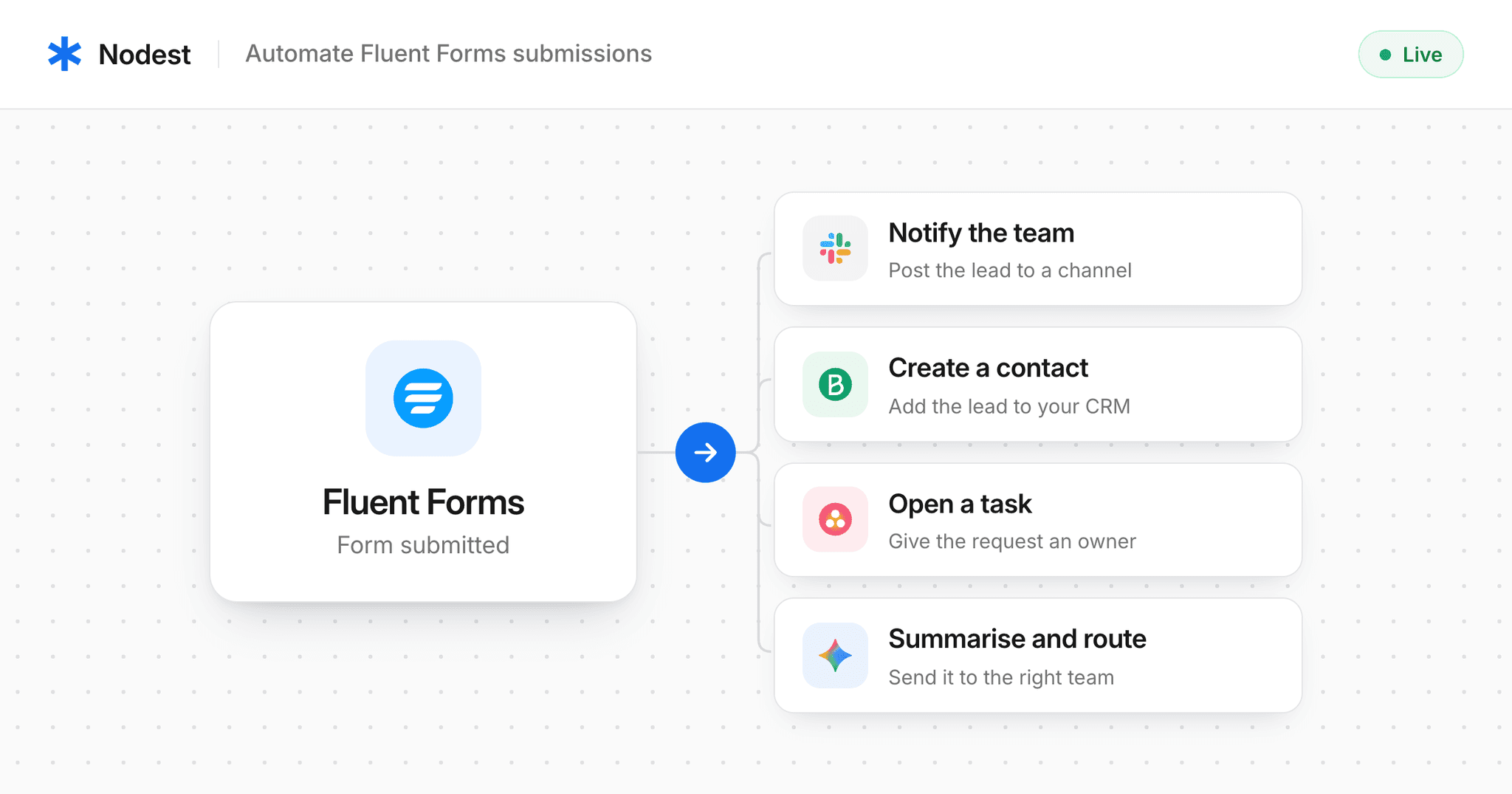
Almost every WordPress site has a form: a quote request, a contact page, an event registration, a booking for a call. Fluent Forms handles every one of those jobs well. But a new entry is only worth something if someone answers it quickly, and most entries sit in an inbox until someone happens to check. Nodest closes that gap: every submission, payment or status change can post to Slack, create a CRM contact, open a task or add a row to a sheet the moment someone submits a form.
That speed matters more than most people think. When Harvard Business Review audited how companies answer new leads, the average first reply took 42 hours, and 23% of companies never replied at all. The MIT lead response study found that a lead contacted within five minutes is 21 times more likely to qualify than one contacted after 30.
This guide covers what happens in the minutes after a submission: six workflows that put each submission in front of the person who can act on it, while it's still worth acting on.
What a Fluent Forms submission gives you to work with
Every submission arrives in Nodest as clean, structured data, so you never have to copy anything out of the entries table. Each field comes with its admin label, its field type and the value the person entered.
Alongside the fields, you also get the entry ID, form title, serial number, entry status and the source URL of the page the form was on. On top of that come the submitter's country, device and browser. That's everything you need to route a lead, personalize a reply or see which pages actually bring in inquiries.
Fluent Forms triggers and actions in Nodest
The Fluent Forms integration comes with nine triggers and four actions. Triggers start an automation and actions are steps Nodest can take back inside Fluent Forms.
| Type | Name | What it does |
|---|---|---|
| Trigger | Form submitted | Fires when an entry is submitted |
| Trigger | Partial submission saved | Fires when a step of a multi-step form is saved |
| Trigger | Entry status changed | Fires when an entry's status changes |
| Trigger | Entry deleted | Fires when an entry is permanently deleted |
| Trigger | Note added to entry | Fires when a note is added to an entry |
| Trigger | Payment status changed | Fires when a payment's status changes |
| Trigger | Payment refunded | Fires when a payment is refunded |
| Trigger | Subscription cancelled | Fires when a subscription is cancelled |
| Trigger | Subscription payment received | Fires when a subscription renews |
| Action | Update entry status | Changes the status of an entry |
| Action | Add a note to an entry | Adds a note to an entry |
| Action | Find a submission | Retrieves an entry by its ID |
| Action | Find forms | Lists the forms on your site |
1. Send new Fluent Forms leads to Slack
Trigger: Form submitted Action: Send a message in Slack
Fluent Forms emails you about new entries, but those emails get buried between newsletters and invoices, and it's hard to tell whether anyone on the team has already replied. Sending each submission to Slack puts the lead where your team already works, with the name, email and message in the post, so they can reply without opening WordPress.
- Create a new automation and pick Fluent Forms as the trigger app.
- Choose Form submitted and select the form you want to watch.
- Add Slack as the next step and choose the send message action.
- Pick a channel, then map the name, email and message fields into the message.
- Optional: add a branch on the form title, so sales leads go to #sales and support requests go to #support.
- Send a test submission from your site, check the message, and switch the automation on.


2. Add Fluent Forms submissions to your CRM or email list
Trigger: Form submitted Action: Create or update a contact in ActiveCampaign, Brevo, CleverReach, Klaviyo, Mailchimp or Pipedrive
Copying contacts from form entries into your CRM by hand is slow, easy to put off and easy to get wrong. One mistyped email address and the follow-up never arrives. This workflow creates or updates the contact automatically and tags it with the form it came from, so your segments stay accurate without extra work.
- Create a new automation with the Form submitted trigger in Fluent Forms.
- Add your CRM or email tool and choose the create or update contact action.
- Map email, first name and last name from the submitted fields.
- Add a tag with the form's name.
- Adding people to a marketing list? Put a filter before this step that only continues when your consent checkbox is checked.
- Test with a real submission and switch it on.


3. Turn quote requests into tasks with an owner
Trigger: Form submitted Actions: Create a task in Asana, ClickUp, Monday.com, Linear, Todoist or Trello
Email notifications tell your team a quote request came in, but not who should answer it or by when. With several people on the same email, requests easily fall through the cracks. Creating a task with an assignee and a due date gives every request a clear owner.
- Create a new automation with the Form submitted trigger and select your quote request form.
- Add your task tool and choose the create task action.
- Build the task title from the form title and the submitter's name, and map the remaining fields into the description.
- Set the assignee and a due date, for example one business day after submission.
- Test and switch it on.


4. Save Fluent Forms entries to Notion, Google Sheets or Airtable
Trigger: Form submitted Action: Add a row in Notion, Google Sheets or create a record in Airtable
Many teams track inquiries in a spreadsheet, but keeping it current means copying every entry over by hand, so it's always a few days behind. This workflow adds a row for each submission as it arrives. With the source URL included, you can also see which pages bring in the most inquiries.
- Create a new automation with the Form submitted trigger.
- Add Google Sheets and choose the add row action, or Airtable and choose create record.
- Pick the spreadsheet and worksheet (or base and table) you want to add to.
- Map one column per form field, then add the entry ID, submission date and source URL.
- Run a test, check that the row appears, and switch it on.


5. Summarize and route long submissions with AI
Trigger: Form submitted Actions: Send a prompt to Gemini or OpenAI, branch on the result, then post to Slack or create a task
Long free-text answers slow everyone down. Someone has to read the whole message to know whether it's for sales, support or billing, then forward it. An AI step reads it first, writes a one-line summary and assigns a category, so the request goes straight to the right team and they see what it's about at a glance.
- Create a new automation with the Form submitted trigger.
- Add Gemini or OpenAI and choose the prompt action.
- Write a prompt that takes your free-text field and returns a one-line summary plus one category from a fixed list, such as sales, support or billing.
- Add a branch on that category.
- Under each branch, add the Slack message or task for the team that owns it.
- Test with a long, real submission, check the categories come back clean, and switch it on.
A fixed category list is what makes this reliable. Tell the model to answer with exactly one of your categories and nothing else, and your branches will always match.


6. Act on Fluent Forms payments, refunds and cancellations
Triggers: Payment status changed, Payment refunded or Subscription cancelled Actions: Notify your team or create a task
Refunds and cancellations are easy to miss among all the other payment emails. This workflow alerts whoever handles retention straight away, with the entry and payment details included.
- Create a new automation and pick the trigger you need: Payment status changed, Payment refunded or Subscription cancelled.
- Add a filter if you only care about certain statuses, plans or amounts.
- Add the notification or task action and map the entry and payment details into it.
- Test and switch it on.
Manage Fluent Forms from your AI assistant with MCP
Automations cover the things that happen every day. Fluent Forms is also available through the Nodest MCP server, so any AI assistant that supports MCP can work with your forms.
- Add an MCP server to your Nodest workspace.
- Pick which Fluent Forms actions the assistant may use, such as Find a submission, Find forms, Update entry status or Add a note to an entry.
- Add the server to your AI assistant and approve the connection once.
From then on, you can ask in plain language: "Pull up entry 482", "Which forms are on the site?" or "Mark that entry as reviewed and add a note". You can also combine it with actions from other tools you connected without you opening them.
How to connect Fluent Forms to Nodest
Connecting takes about a minute. Click Connect on Fluent Forms in your Integrations list and enter your WordPress site URL. Nodest sends you to your own site to approve the connection, and that's the whole setup.
From there, you pick a trigger, add actions and map fields in a visual editor. If you can use WordPress, you can build this. Want a head start? The Fluent Forms templates come with the trigger, actions and mapping already in place. Pick one, point it at your form and go live.
The free plan includes unlimited automations and 100 actions a month, with no credit card. That's enough to run your first few workflows and see how they hold up.
Frequently asked questions
Can Fluent Forms send submissions to Slack, Google Sheets or a CRM?
Yes. With Nodest, the Form submitted trigger can post to Slack, add a row to Google Sheets, or create a contact in ActiveCampaign, Brevo, Klaviyo, Mailchimp, Pipedrive and more, all in the same workflow if you like.
Do I need coding skills to automate Fluent Forms?
No. You build every workflow in a visual editor: pick a trigger, add actions and map fields. There are no webhooks or code snippets to maintain.
Can I automate Fluent Forms payments and subscriptions?
Yes. Nodest has triggers for payment status changes, refunds, canceled subscriptions and subscription renewals.
Can I follow up on abandoned multi-step forms?
Yes. The Partial submission saved trigger fires when someone completes a step of a multi-step form, even if they never submit the whole thing.
Is there a free plan?
Yes. The free plan includes unlimited automations and 100 actions a month, with no credit card required.
Where is my form data processed?
In the EU. Nodest is operated from Germany and hosts data with Hetzner in Germany under the GDPR.
Start with one workflow
You don't need all six on day one. Start with the Slack alert or the CRM sync, run it for a week, and see how many leads you'd otherwise have answered a day late.
Try it now: Sign up for free, connect your site, and have your first Fluent Forms automation running in under 5 minutes. Or browse the Fluent Forms integration to see everything it can connect to.